Laser engraving: which file format and which line width?
Updated on
To engrave a line, export the Single stroke trace as SVG or DXF, one pass per line; to engrave an area, keep the filled shapes of Logo, which the laser software fills; either way, compare the details with your beam diameter using “Ready for cutting?” at the real width.
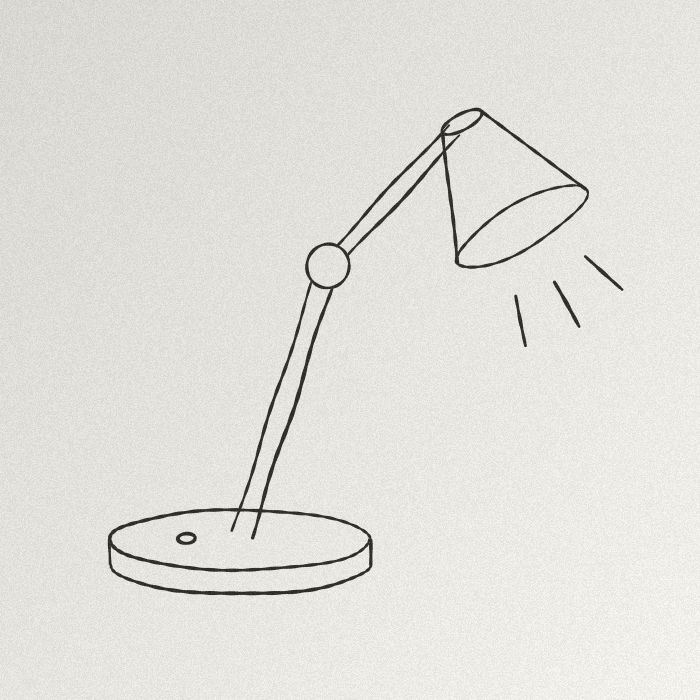 JPG · 1000 × 760 px
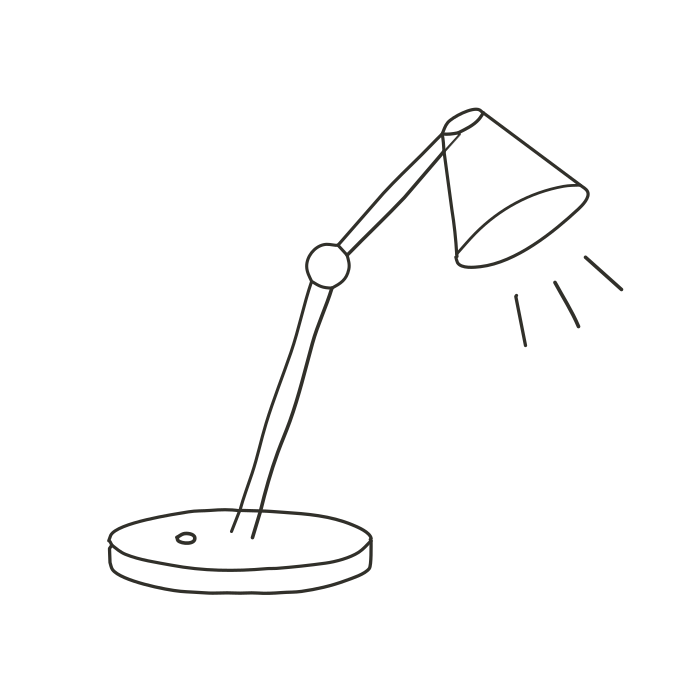 Engine SVG
Which format: SVG or DXF
Both carry the same geometry. The SVG keeps curves, colours and, with Single stroke, the measured width of each line; it is free, except transparent background and recolouring (Pro), but with Single stroke every download counts. The DXF keeps the geometry only: curves flattened into polylines, one layer per colour, in millimetres at the “Drawing width (mm)”; it is a production export.
One layer per colour means one power and speed setting per colour in the laser software: lower “Number of colours” to the number of settings you want.
Which line width
- An engraved line has the width of the beam, not of the drawing: with Single stroke, the DXF writes no width, the laser follows the axis once.
- “Minimum width” (Advanced, Single stroke), in image pixels: no line in the SVG is thinner. Set it so the preview looks like the engraving.
- A thick line to engrave solid is an area: keep Logo, and the check flags strips narrower than the beam, at the real width.
- Very thick lines with Single stroke give wobbly axes: the workshop then suggests “Line art”, without applying it.
Steps
- Drop the image into the workshop.
- Line: Single stroke; area: Logo or Black and white.
- In Export, choose the format and the “Drawing width (mm)”, the width of the piece.
- In “Ready for cutting?”, set “Tool diameter (mm)” to your beam (0.2 by default).
- Download, import, set power and speed.
To cut rather than engrave: converting an image to DXF for laser cutting; the full preparation is in the laser guide. A greyscale photo engraves better as a raster image than as vectors.
Nothing leaves your computer: see vectorize without uploading.
Production exports (DXF, EPS, PDF, separations): 2 free per month with an account, unlimited with Pro; without Pro, 1 credit each beyond those 2. A new account gets unlimited production exports for 7 days, once. The preview and the “Ready for cutting?” check are free; the conversion runs in your browser and the server only counts the export. The details: how much vectorizing costs.
The other trades: the production page.
Frequently asked questions
SVG or DXF for engraving?
The SVG if your laser software reads it and you want to keep curves; the DXF for geometry in millimetres, one layer per colour. The trace is the same.
Does a single stroke have a width?
In the SVG, the measured width of each line; in the DXF, none: the beam gives it.
Engrave an area or a line?
An area: the filled shapes of Logo, filled by the laser software. A line: Single stroke, one pass per line.
Is engraving counted?
The DXF, and any download with Single stroke, are production exports: 2 free per month with an account, then 1 credit each, unlimited with Pro.
Related questions
- How do I make a cut-ready SVG for Cricut or Silhouette from a picture?
- How do I convert an image to DXF for laser cutting?
- How do I get a single-line (centreline) file for embroidery or a pen plotter?
- How do I get one file per colour for screen printing?
- How do I prepare a logo for vinyl cutting or a sign?
- How do I turn lettering or a logo into a DXF for a plotter or a CNC router?
- How do I prepare a drawing for single-thread line embroidery?
- All questions about vectorizing images
- Students: what is free
Guides and conversions
- Convert a PNG to SVG, right in your browser
- Convert a JPG to SVG, without the compression artefacts
- Vectorize a logo: from PNG or JPG to a vector file
- Convert an image to DXF for cutting
- A Vectorizer.AI alternative that never asks you to upload the image
- A Vector Magic alternative that traces without uploading the image
- An Illustrator Image Trace alternative, with nothing to install
- An Inkscape Trace Bitmap alternative, right in your browser
- A clean SVG for Cricut and Silhouette Cameo, from any image
- Logo to DXF for laser cutting: from PNG to a ready file
- Turn an image into an SVG for Cricut, step by step
- Prepare a JPG for laser cutting and engraving
- Embroidery: prepare an image before digitizing
- Colour separation for screen printing, from an image
- Connect Homotope to Claude, ChatGPT or Gemini
- The Homotope Figma plugin: your images to SVG, without leaving Figma
- Homotope for production: cutting, screen printing, laser and embroidery