Embroidery: prepare an image before digitizing
Updated on
Homotope does not create embroidery files (DST, PES), but it prepares the image before digitizing: colours reduced to your threads, clean flat shapes and an SVG to import into your embroidery software.
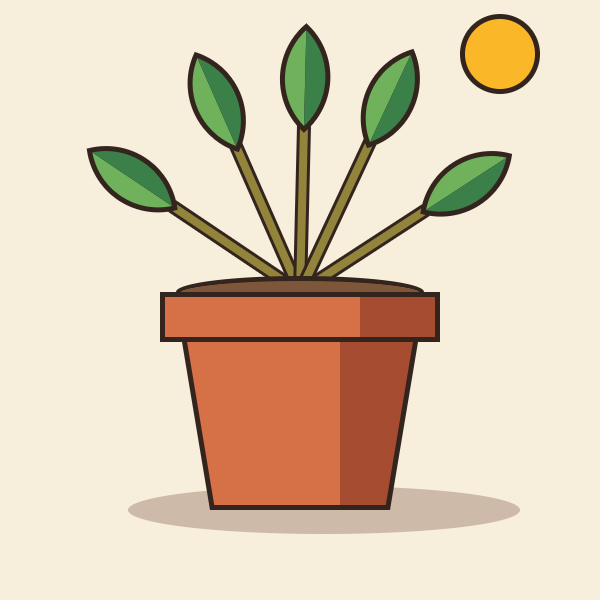 PNG · 600 × 600 px
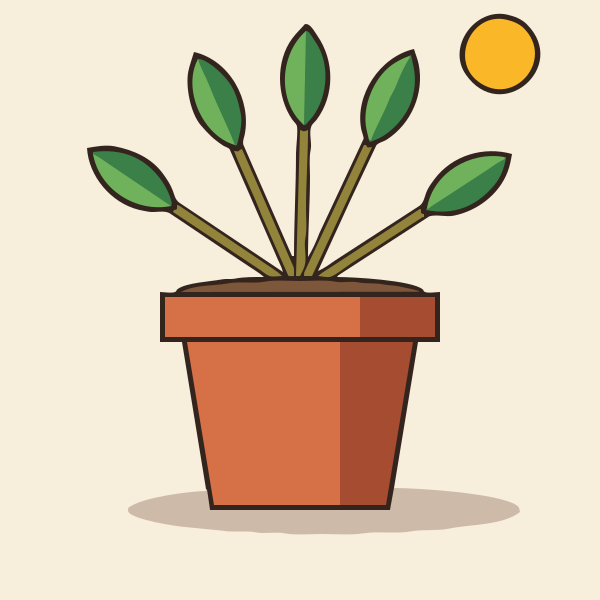 Engine SVG
What Homotope does, and what it does not
Digitizing (stitch types, density, direction, pull compensation) happens in embroidery software. Homotope comes before that: it turns a blurry logo or a compressed JPG into clean shapes, in exactly your thread colours.
Homotope traces in your browser: the engine runs on your own machine, in a Web Worker, and your image is sent nowhere unless you save it to your account or ask for a server processing. The workshop opens without an account and without a usage limit: tracing, preview, SVG and PNG exports are free. Production exports (DXF, EPS, PDF, separations): 2 free per month with an account, unlimited with Pro; the conversion stays in your browser. With an account, Homotope only emails you about the service (welcome, gifted Pro, team invitation), through Resend, never for marketing.
Steps
- Open the workshop, drop the image, Logo preset.
- In the Palette panel, “Fixed palette” section, paste your thread list
(one colour per line, optional name:
#E30613 Red 321) or import a CSV or ASE file, then tick “Use this swatch library”. No colour is invented. - Set the coverage threshold to drop a colour that covers too little of the image.
- Export the SVG, or a layered SVG (“One layer per colour”): one layer per thread.
- Import the SVG into embroidery software that reads SVG.
The palette stays in your browser; no Pantone table is shipped: import your own.
Frequently asked questions
Does Homotope create DST or PES files?
No. Homotope prepares the image (colours, flat shapes, SVG); stitch digitizing happens afterwards in your embroidery software.
How do I limit the image to my thread colours?
Paste or import your colours in the fixed palette and turn it on: each pixel takes the closest thread colour.
Which palette files are accepted?
A pasted list, a CSV (name and hex colour) or an ASE file (Adobe Swatch Exchange), from 2 to 64 colours.
Is my logo uploaded anywhere?
No, tracing happens in your browser and your palette stays there too.
More guides
- Convert a PNG to SVG, right in your browser
- Convert a JPG to SVG, without the compression artefacts
- Vectorize a logo: from PNG or JPG to a vector file
- Convert an image to DXF for cutting
- A Vectorizer.AI alternative that never asks you to upload the image
- A clean SVG for Cricut and Silhouette Cameo, from any image
- Logo to DXF for laser cutting: from PNG to a ready file
- Turn an image into an SVG for Cricut, step by step
- Prepare a JPG for laser cutting and engraving
- Colour separation for screen printing, from an image