Convert a PNG to SVG, right in your browser
Updated on
To convert a PNG to SVG, drop it into the Homotope workshop, pick a preset (Logo, Illustration, Pixel art…) and download the SVG: the conversion runs on your own machine, for free and without an account.
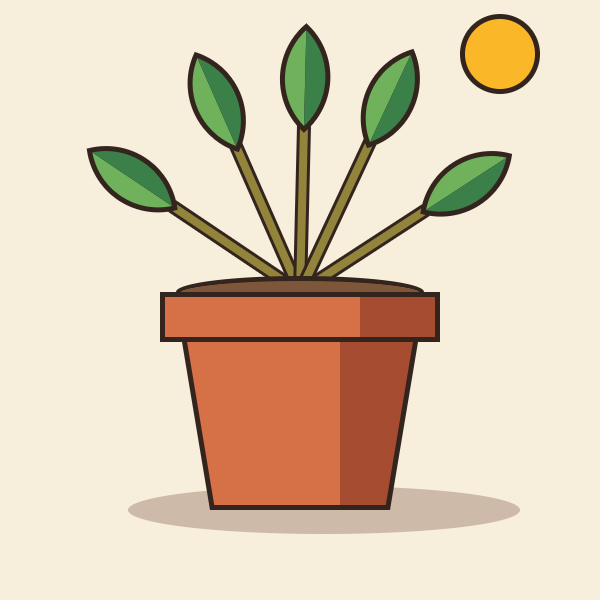 PNG · 600 × 600 px
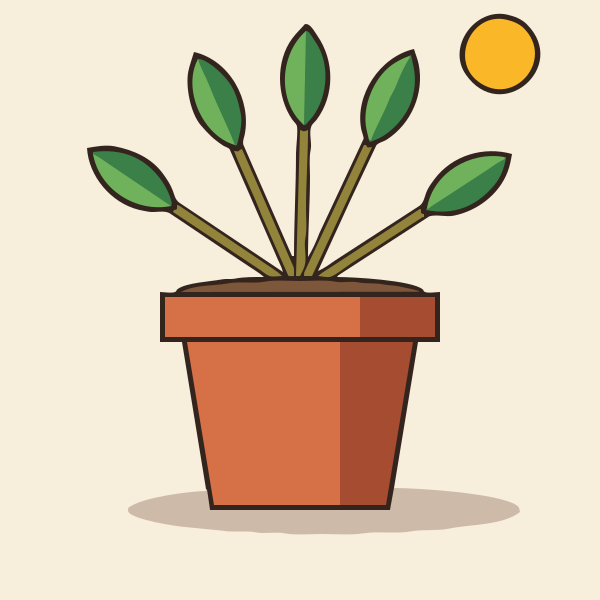 Engine SVG
Steps in the workshop
The workshop interface is in French; the button names are quoted below in French with their meaning.
- Open the workshop and drop your PNG (or paste it from the clipboard). JPG and WebP work too.
- Pick the preset closest to your image: Logo for flat colours and sharp corners, Illustration for a richer drawing, Pixel art to keep every pixel square, « Dessin au trait » (line art) for lettering or a stamp.
- Compare the original and the result with the slider, then adjust the number of colours in the « Avancé » (advanced) panel if needed.
- Download the SVG, or copy it and paste it into your drawing software.
Homotope traces in your browser: the engine runs on your own machine, in a Web Worker, and your image is sent nowhere unless you save it to your account or ask for a server computation. The workshop opens without an account and without a usage limit: tracing, preview, SVG and PNG exports are free. Fabrication exports (DXF, EPS, PDF, separations): 2 free per month with an account, unlimited with Pro; the conversion stays in your browser.
What happens to your PNG
- Transparency is kept: transparent pixels of your PNG become no shape at all (« Transparence : Conserver », the default).
- Colours are counted: each area becomes a single flat colour, and you choose how many to keep.
- Shapes meet without gaps in “cut” mode: no white hairline between two areas when you zoom in.
- The SVG scales without blur to any size: poster, T-shirt, shop sign.
Two palette edits carry a Pro badge: making a colour transparent (a solid background your PNG has not already removed) and changing a colour. The preview is free; downloading a result that uses them, SVG and PNG included, needs Pro or the 7-day trial.
When it does not work well
A photo is not made of flat colours: it becomes a posterised image, in bands of colour, never a continuous gradient. For a photograph to reproduce faithfully, keep the PNG. A tiny PNG (a 32 px icon) is upscaled before tracing, but it cannot invent details it does not have: start from the largest version you can find. A very light pencil drawing or a textured background often needs the number of colours lowered by hand.
Frequently asked questions
Is converting a PNG to SVG free?
Yes: tracing in the browser, the preview and SVG and PNG downloads are free, with no account and no limit. Only fabrication exports (DXF, EPS, PDF, separations) are counted: 2 free per month with an account, then 1 credit each, unlimited with Pro.
Is my PNG uploaded to a server?
No. The computation runs in your browser; the image only reaches the server if you save it to your account or ask for a server computation yourself.
Is the transparent background of my PNG kept?
Yes, transparency already in the PNG is kept by default, for free. Making an opaque colour transparent (a white background) is a Pro feature when you download.
How many colours should I keep?
The number is chosen automatically; for a logo, 2 to 6 colours are often enough. Set « Nombre de couleurs » (number of colours) in the advanced panel to force it.
More guides
- Convert a JPG to SVG, without the compression artefacts
- Vectorize a logo: from PNG or JPG to a vector file
- Convert an image to DXF for cutting
- A Vectorizer.AI alternative that never asks you to upload the image
- A clean SVG for Cricut and Silhouette Cameo, from any image
- Logo to DXF for laser cutting: from PNG to a ready file
- Turn an image into an SVG for Cricut, step by step
- Prepare a JPG for laser cutting and engraving
- Embroidery: prepare an image before digitizing
- Colour separation for screen printing, from an image